Adding Wi-Fi Devices
Adding Wi-Fi Devices
The following Rhoss TEMA devices can be added without a Modbus wired connection if they have Wi-Fi connectivity:
- Rhoss TEMA Fan Coil
- Rhoss TEMA Chiller unit
- Rhoss TEMA Heat Pump
Before You Start
- Ensure the device is powered on.
- Each device automatically starts in discoverable mode after power-on (unless previously paired, in that case it will need a reset).
- Enable Bluetooth on your phone. If connecting via Wi-Fi, your phone must be on the same Wi-Fi network you want to use.
Discover the Device
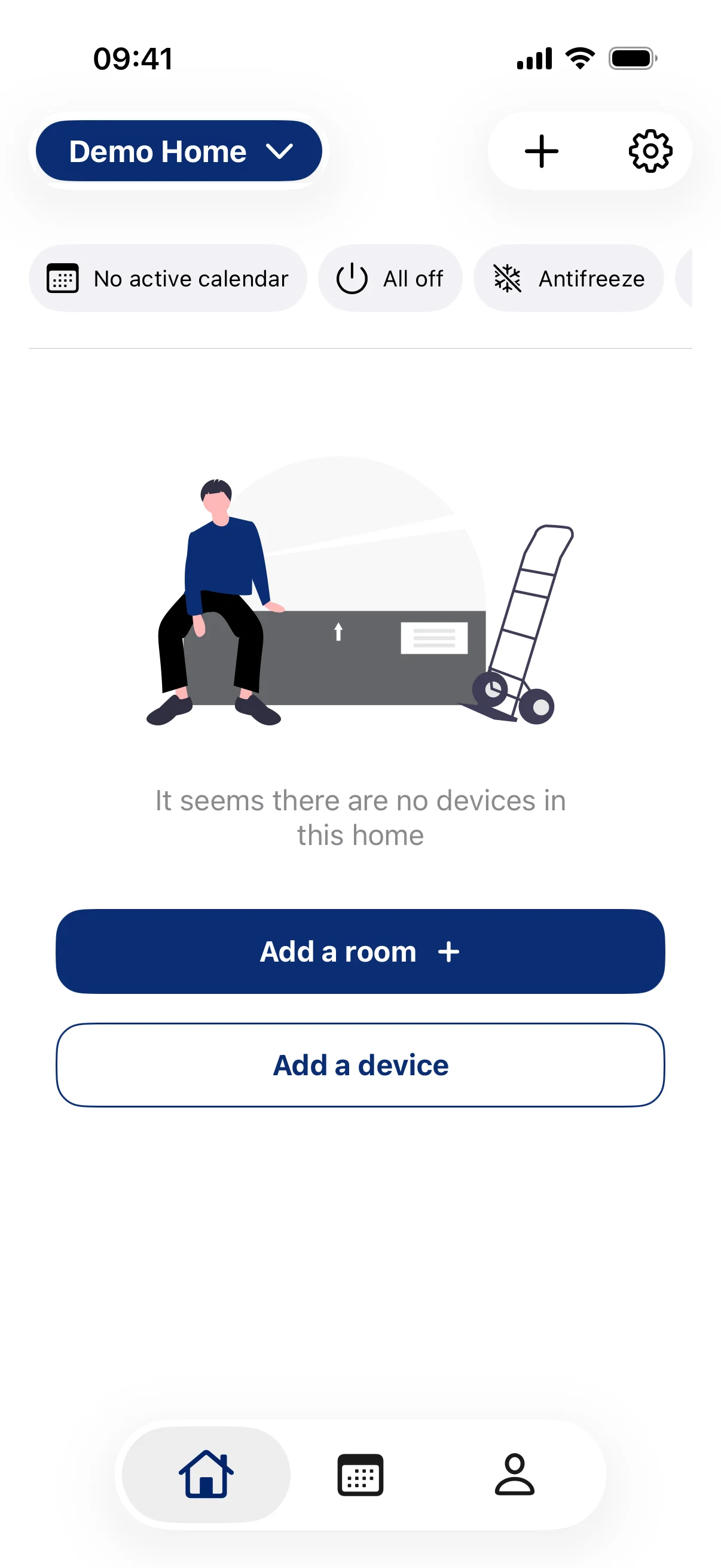
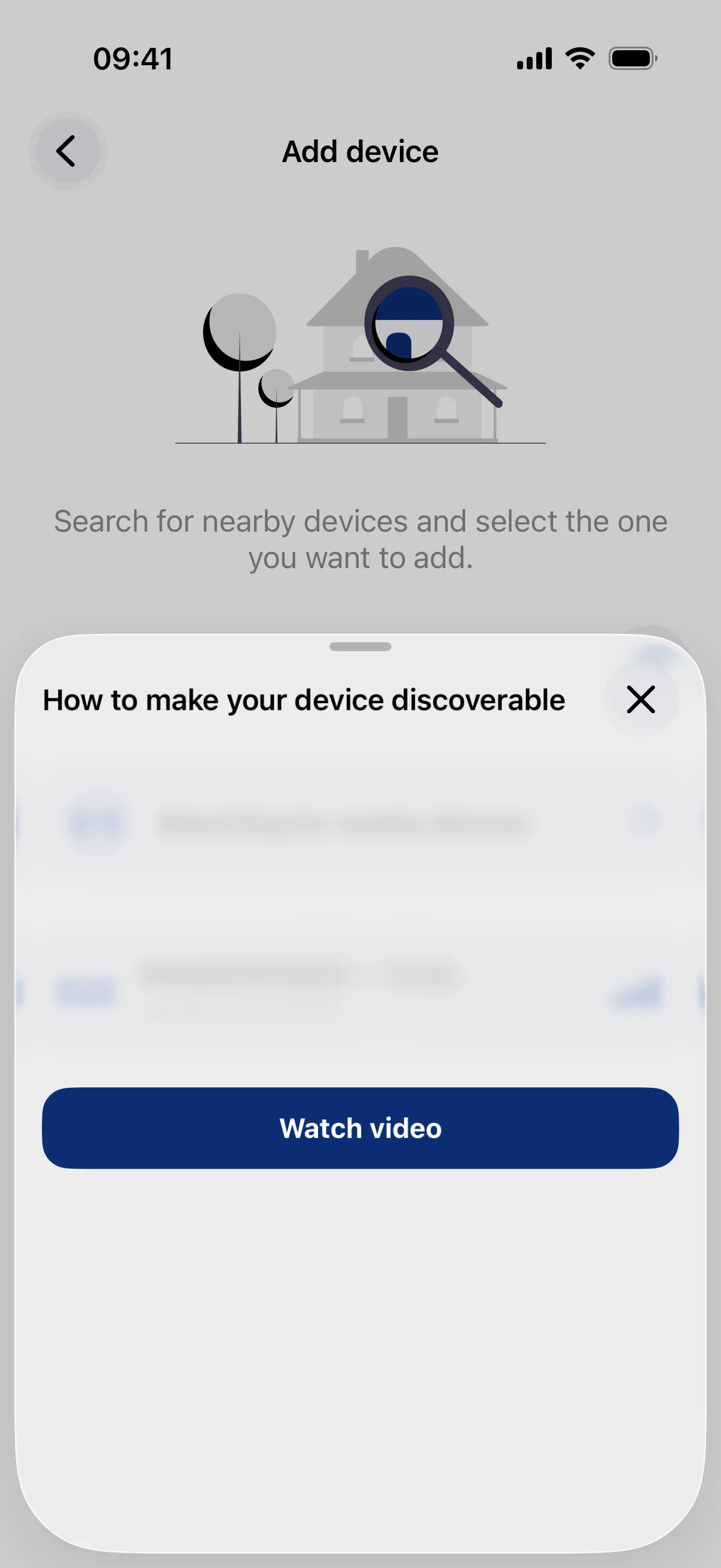
- In the app, tap Add a device. You may see a help screen explaining how to enable Bluetooth.
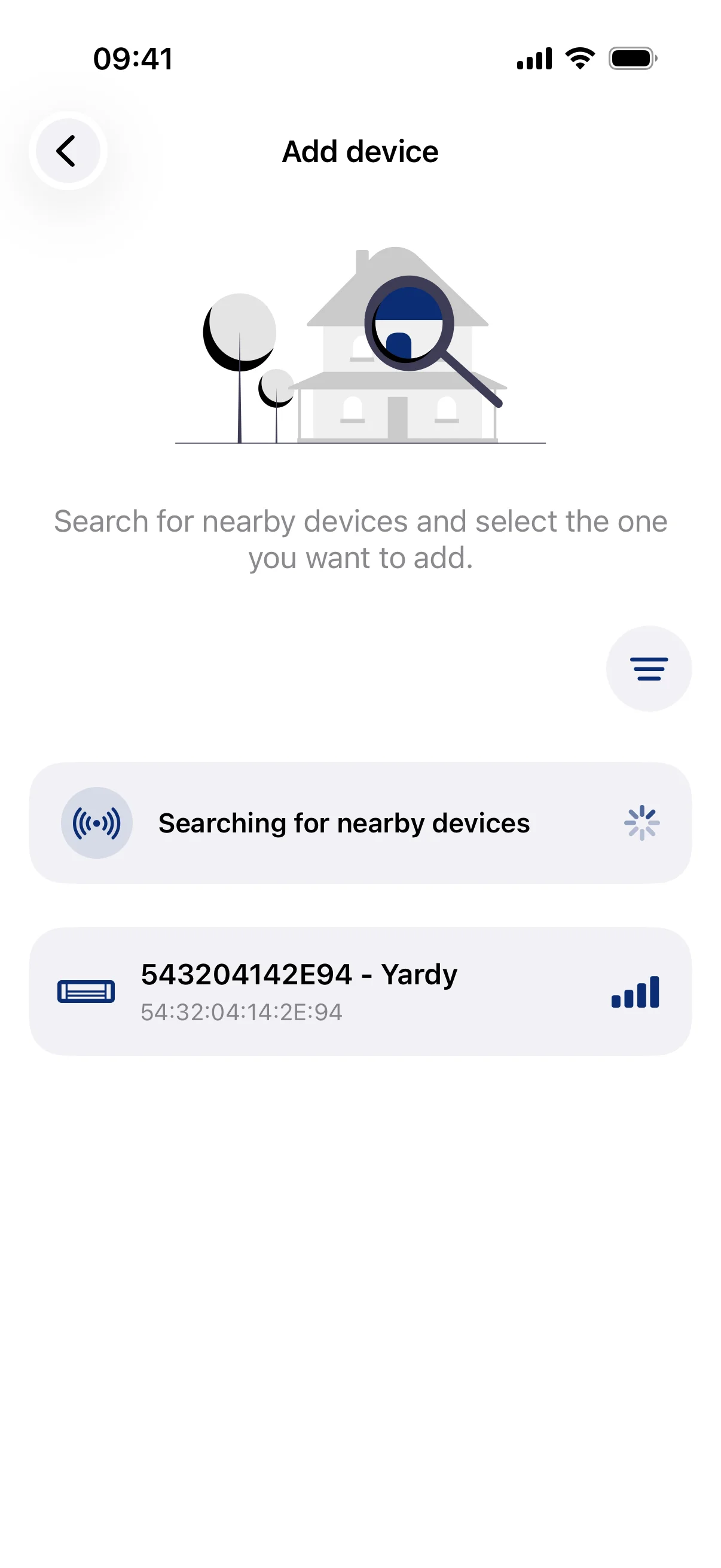
- The app scans for nearby devices via Bluetooth.
- Your device will appear in the list with its name and MAC address.
- Tap the device to select it.
Assign a Name
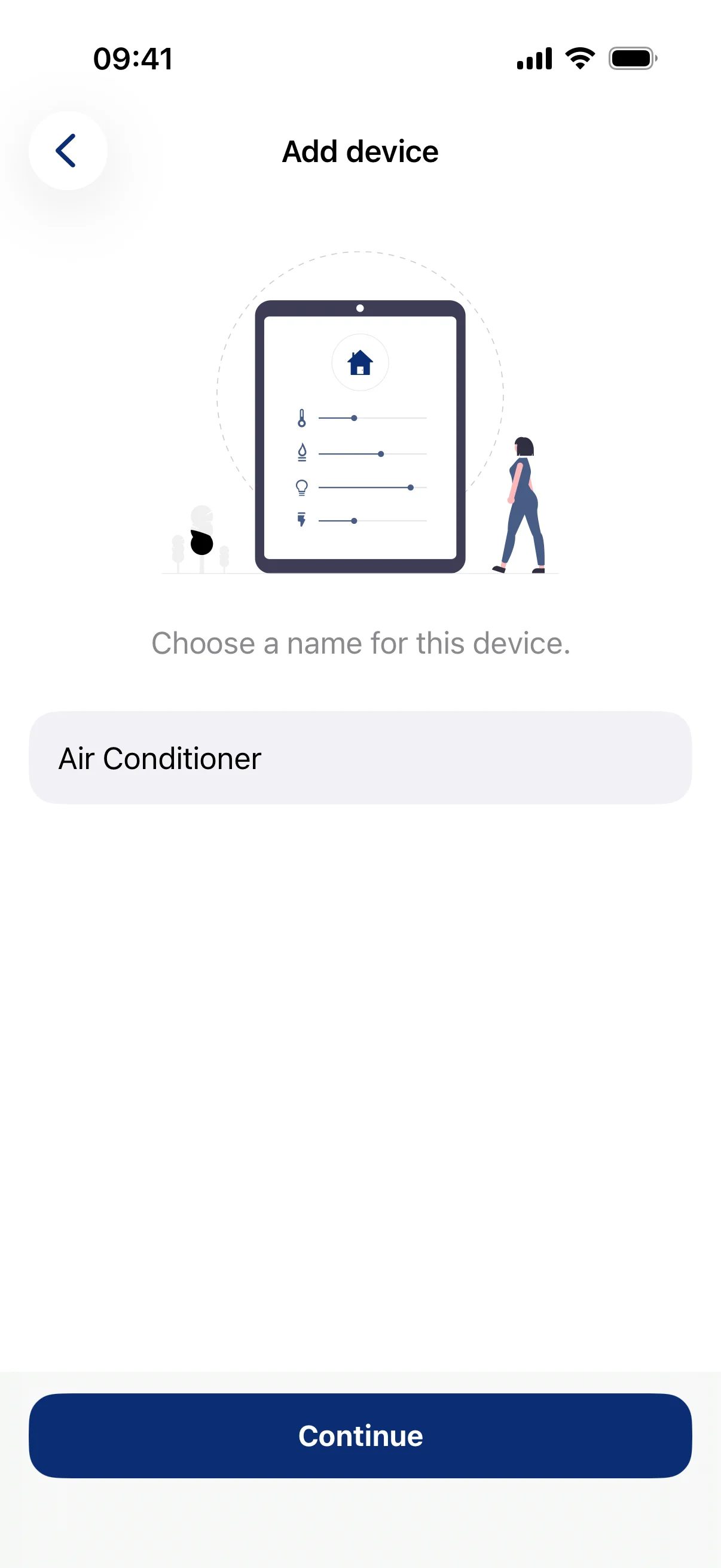
- Give the device a descriptive name.
- Optionally assign it to a room.
- Tap Continue.
Configure the Wi-Fi Connection
For these devices, Wi-Fi is the only connectivity option.
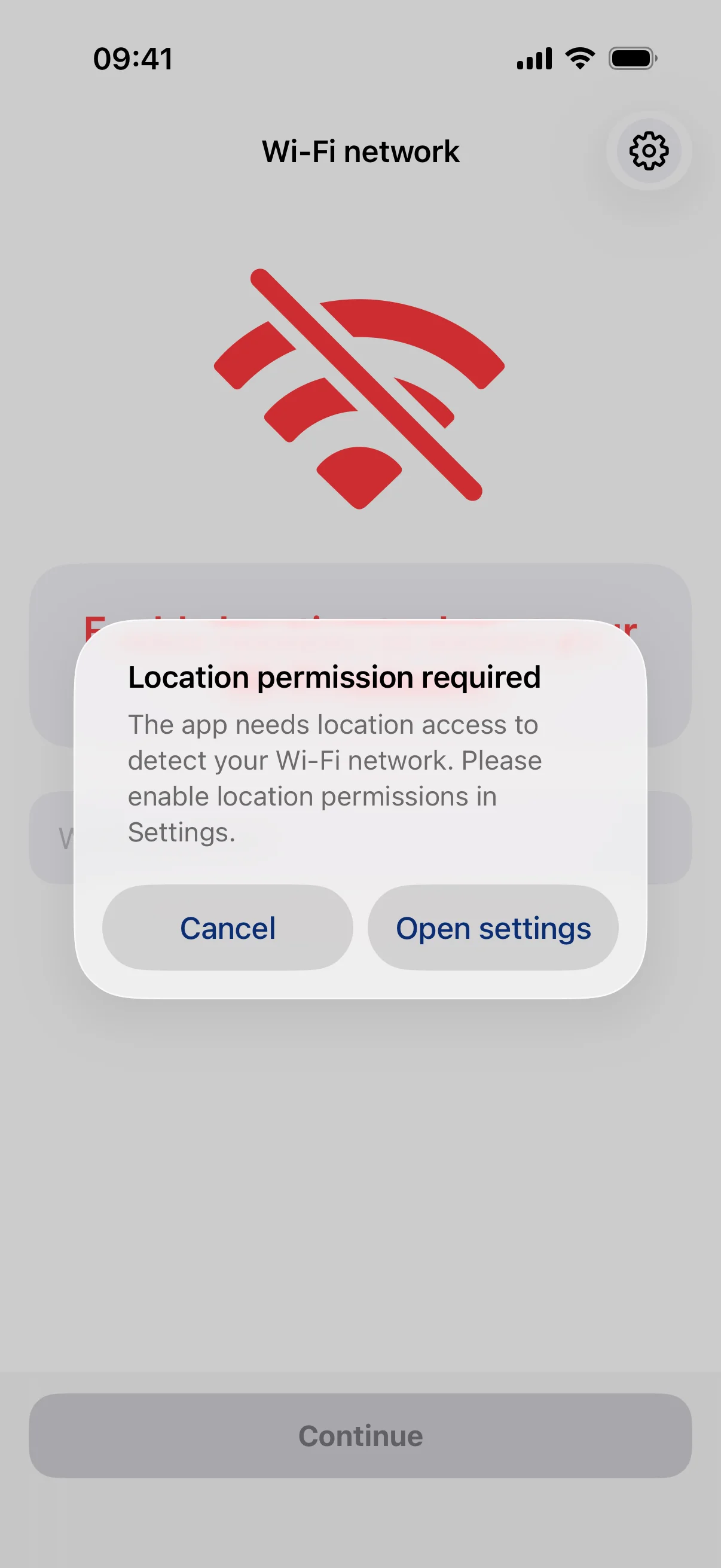
Ensure Wi-Fi, Bluetooth, and location services are all enabled on your phone during setup.
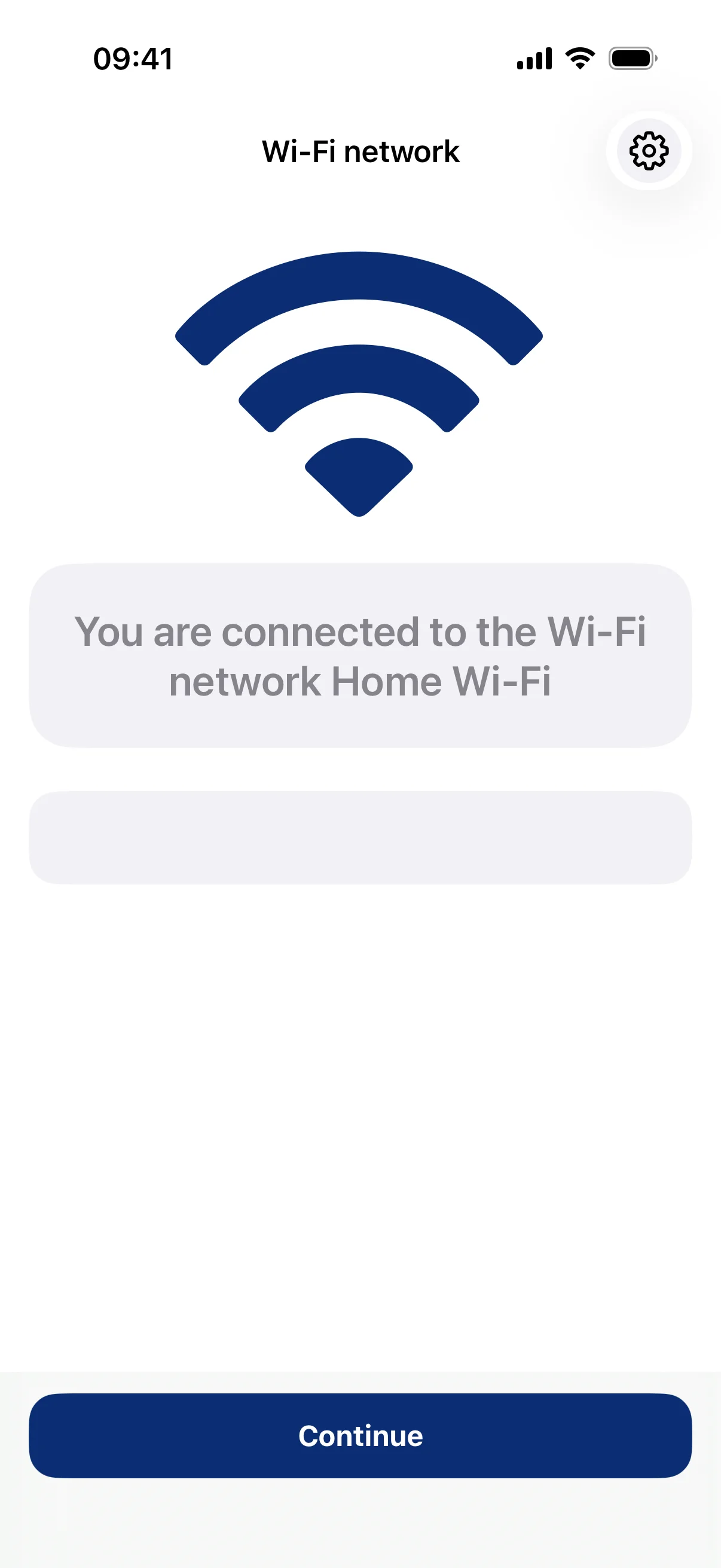
The app will show the Wi-Fi network your phone is currently connected to. Enter the Wi-Fi password and tap Continue.
Once this is done, the device will automatically appear on the home page of the app, nested under the room it was added to.